
Convert Excel Spreadsheets to a CRM Database
While Excel spreadsheets serve as a starting point for consolidating client details, relying solely on it as a sales CRM has limitations.
by Jon Arancio, Vice President

Understanding the need to convert Excel Spreadsheets to a CRM Software
Picture a startup that grew quickly before figuring out the right workflow for every department. Maybe the accounting group began with some software system but other teams, like sales, were left to manage with ordinary Microsoft Office technology. So, they make a list of clients, which turns out to be the start of their Excel CRM. As the company grows, the sales people realize this system is not sustainable.
Businesses often come into being by selling before doing anything else. They have to find and acquire clients to get started. How to manage those clients is often put together on the fly. Early on it becomes apparent that a program is needed to manage the accounting and billing. These are typically the first systems in place. A customer relationship management (CRM) database is often the next system on the growing business’s to-do list. What happens if this doesn’t occur?
The customer data has to live somewhere. Today that might mean a messy mix of email communication, Post-it notes, and Excel spreadsheets. Excel can be a good starting point for centralizing all the different bits of detail collected on clients. But using Excel as your sales CRM falls short in some significant ways:
- Columns in the spreadsheet are easy to mess up. Sort one column without the rest or delete a cell in the wrong place, and your organized data is now unreliable from that spot. This gets much more challenging with more than a few thousand names.
- It is difficult to share an Excel sheet or Google sheet with multiple users and the data from a spreadsheet can easily mix up. It is more difficult to share with mobile sales people. Not all users are adept at using Excel.
- It can be hard to impose structure. Users can enter text in date fields and stray from your proposed dropdown items.
- While the Excel file might be useful for maintaining a single comment field, it is much more difficult to log multiple interactions or notes onto one client record. The lack of a way to visualize one to many relationships is a big gap compared to CRM applications.
- CRM software has ready integration with email applications and web apps that cannot be reproduced in a worksheet.
These reasons and others compel businesses to consider a more organized, more automated approach. What can you expect to gain if you move on from a Microsoft Excel CRM spreadsheet to an actual CRM platform?
- The administration and control available in CRM programs is a substantial upgrade. You can set the permission of each user and lay out the interface to show them just what they require to work. Organizing the fields and views is fast and it's easy to use.
- CRM tools make fields mandatory and give the team a place to store notes, calls, email, task and other client related data in one central record.
- The existing integration with the Office applications, and notably email, creates a major time saver for busy sales teams.
- Having a CRM to manage data leads to more expansive reporting opportunities. You can still look at the basic name and field data, but also at the activity, next steps and sales potential.
- CRM systems integrate with other systems using customization with modern APIs, connections with Zapier and other links to integrate on the sales activity with other parts of the business. Order or accounting integrations are common examples of this.
Once an organization runs into the limits of Excel, it is easy to add to the list of motivations to find something superior.

Preparing your Excel data for conversion
Once you find enough justification to commit to starting to use CRM, it may be necessary to tweak your different sheets to make the transition more effective. We do a fair number of these data conversions for clients who feel confident that once they get their data organized into a spreadsheet, any CRM should be able to import it.
Having the Excel file is just the first part. What matters more is what is in the columns and rows, as well as what you expect to have once the records show up in the CRM. How the records relate to each other and how consistent the values in fields are will dictate how effective the final result will be.
Therefore, your first objective is to figure out what you want the data from Excel to look like. In its simplest form, we would direct one row of the worksheet to one person in the CRM. This often works for leads data or a simple business to consumer spreadsheet where the accounts are consumers.
For the purposes of this discussion, let's consider a business-to-business scenario where the accounts are organizations or companies that have contacts working under them. This a common way for our clients to work, but it complicates what constitutes valid data for import. Here are a few examples of the modifications necessary to line up the source data with the target records in CRM.
- Find a key – we have to determine which records belong together under one company record. Somewhere in your table, there needs to be a column with a value that is unique to the rows belonging to the company. It can be the company name, an ID number or something else like a web URL. It just must be consistent. Names are not always consistent. My company could be listed as Wintec Group, Wintec Group Inc., or Wintec Group, Inc. To use the name column as a unique ID, one would have make them all consistent.
- Physical address – in the open cells of a worksheet, there can be situations where the same location can be written many ways. I might write 1 Main St. on one row and One Main Street on another. Same place to the reader but not the same to a CRM import utility. Some effort goes into making the addresses clean and there is a bit more work if a single company has people under it that reside in different locations.
- Field mapping – you can choose what fields to map to the company and what fields to map to the contact. Sometimes the same field (like main phone number) can be mapped to each. You may need to make a copy of some columns to allow mapping to fields on different types of records.
- Field size – Excel may tolerate really long text in some fields that are restricted in length in your CRM. If you know the maximum fields size the CRM can support, you can use the formula =LEN(A2) (where A2 is the cell reference) to report how long the contents are in a cell. You can filter on the wide ones and trim them down.
- Formulas – additional formulas can help with other preparatory work on the data. We sometimes apply a label, but want it only on rows that are populated. A formula like =(LEN(A2)>0,”Work”,””) would label a phone number as ‘Work’ but only if a number is present.
The key is to make the inbound data as clean and organized as possible, so you don’t make more work for yourself and your team once you are in the CRM. Also, contact data is just one type of data source. Customers can upload notes, opportunities and client service records, that link to the contact data.

10 Benefits of a CRM for Small Businesses
A CRM is an essential tool and can be a game changer for small businesses.
The conversion process: Easy template to import your CRM data
We assist customers with bringing data into Maximizer CRM. This is an easy-to-use CRM that can be implemented quickly. Uploading the initial data is one of the first steps. We can use this as an example to provide a step-wise process for import and export data.
Here is a bit of starting data we want to bring in:
| Company | Contact | Address | City | State | ZipCode | Phone |
| Derry Machinery | Caleb Connor | 62 Orange Tree Lane | Clinton | PA | 16201 | 203-505-2019 |
| Derry Machinery | Rebecca Cook | 62 Orange Tree La. | Clinton | PA | 16201 | 203-505-2024 |
| Derry Machinery | Fred Hampton | 62 Orange Tree Lane | Clinton | PA | 16201 | 203-505-2031 |
| Derry Machinery | Doris Jameson | 62 Orange Tree Lane | Clinton | PA | 16201 | |
| Derry Machinery | Doug Bonner | 451 S. Baker St. | Pittsburgh | PA | 17229 | 203-654-3401 |
Step 1 – to make it easy to load, separate the customer information by first and last name. We can use Excel’s text-to-columns command (under the data menu) to break this up for us. Copy the contact column to the far right and paste. Then go to the Data tab and pick text to columns. Choose delimited and use the space delimiter. Now we have:
| Company | Address | City | State | ZipCode | Phone | First | Last |
| Derry Machinery | 62 Orange Tree Lane | Clinton | PA | 16201 | 203-505-2019 | Caleb | Connor |
| Derry Machinery | 62 Orange Tree La. | Clinton | PA | 16201 | 203-505-2024 | Rebecca | Cook |
| Derry Machinery | 62 Orange Tree Lane | Clinton | PA | 16201 | 203-505-2031 | Fred | Hampton |
| Derry Machinery | 62 Orange Tree Lane | Clinton | PA | 16201 | Doris | Jameson | |
| Derry Machinery | 451 S. Baker St. | Pittsburgh | PA | 17229 | 203-654-3401 | Doug | Bonner |
Step 2 – label the phones. Since the phone numbers are all different, we can assume they are direct numbers. Therefore, I will add a column with this formula - =IF(LEN(F2)>0,"Direct",""):
| Company | Address | City | State | ZipCode | Phone | Label | First | Last |
| Derry Machinery | 62 Orange Tree Lane | Clinton | PA | 16201 | 203-505-2019 | Direct | Caleb | Connor |
| Derry Machinery | 62 Orange Tree La. | Clinton | PA | 16201 | 203-505-2024 | Direct | Rebecca | Cook |
| Derry Machinery | 62 Orange Tree Lane | Clinton | PA | 16201 | 203-505-2031 | Direct | Fred | Hampton |
| Derry Machinery | 62 Orange Tree Lane | Clinton | PA | 16201 | Doris | Jameson | ||
| Derry Machinery | 451 S. Baker St. | Pittsburgh | PA | 17229 | 203-654-3401 | Direct | Doug | Bonner |
Step 3 – manage the address data. In this case, I would have to manually change the 62 Orange Trade La. text to use ‘Lane’. That still leaves one odd address in Pittsburgh. If we bring these addresses to the contact level they will be accurate but the main address will be blank. If I map these to the company level, my company will be located in either Clinton or in Pittsburgh. The right choice is to combine the 2nd, 3rd, 4th and 5th columns and paste into the sheet again. I would make the first set all have 62 Orange Trade Lane as the address and I would map this to the company. The other addresses, which vary by person, would map to the contact as follows.
| Company | Address | City | State | Zip | Contact Address | Cont. City | Ct. State | Cont. Zip |
| Derry Machinery | 62 Orange Tree Lane | Clinton | PA | 16201 | 62 Orange Tree Lane | Clinton | PA | 16201 |
| Derry Machinery | 62 Orange Tree Lane | Clinton | PA | 16201 | 62 Orange Tree Lane | Clinton | PA | 16201 |
| Derry Machinery | 62 Orange Tree Lane | Clinton | PA | 16201 | 62 Orange Tree Lane | Clinton | PA | 16201 |
| Derry Machinery | 62 Orange Tree Lane | Clinton | PA | 16201 | 62 Orange Tree Lane | Clinton | PA | 16201 |
| Derry Machinery | 62 Orange Tree Lane | Clinton | PA | 16201 | 451 S. Baker St. | Pittsburgh | PA | 17229 |
My data now has a unique ID of Derry Machinery at the company level and a unique ID of first and last name for the contact level. With this I start the actual work in the CRM.
Step 4 – bring in the data. Within Maximizer CRM, I login and select Import from the panel on the left. In the first dialog box I browse for the above Excel file. Once I pick this file, I select Contains Company information and the Contacts that belong to them from the drop down. Click next and choose the option to Add only new records currently not in Maximizer. It is notable that you can choose to insert new records or match against existing (and update them).
Step 5 – mapping. This is the part of the work most customers focus on, and while it is important, there is nothing you can do during this step if the data is not lined up correctly at the start. Here are some images of the company mapping:
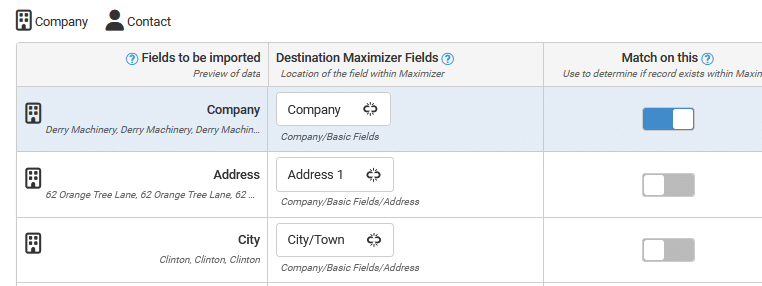
Note, the company is selected for Match on this – our unique ID for the company. The icon to the far left indicates these are company level fields.
The contact fields are also mapped:
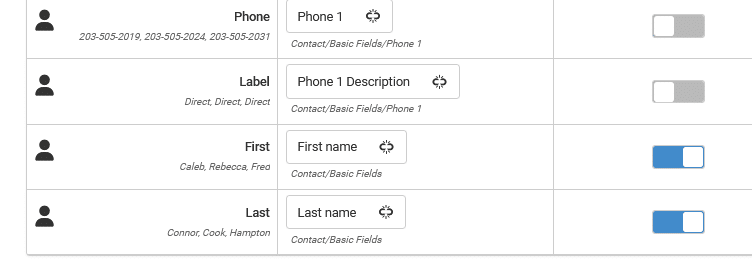
At the contact level the first and last names are our identifiers. We are mapping the phone to the contact, but not to the company. We would save our mapping in case we upload this file format again in the future. The results are listed below:

If we had failures, these would show up in the # Failed box. That is a numeric indicator of errors and clicking it takes you to a CSV file that shows you the problem rows and indicates a reason for failure. You are able to save your mapping and upload options in a template. You can make corrections to your error file and rely on the template to reimport the failures complete your work.
Step 6 – inspect the results. This was a simple data load and it came in clean.
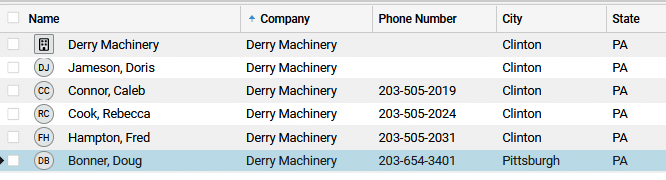
You can see that most contacts fell into the Clinton location but one was assigned to Pittsburgh. This all comprises one company record with five contacts and two locations.
Understanding your sales CRM database structure
Once your old data is brought into the CRM address book, you are still able to interact with the record as they are in a list. It is easy to filter and sort on any field and you can export data as an Excel file if that is your preference. Beyond this, you can share the records easily via web browser or mobile device and you have specific structure for the data. You won’t be able to type text into a date or numeric field or write long notes where a phone number belongs. These restrictions are a significant benefit, because they ensure that your data stays consistently good.
You can also log other information alongside the contact details, going beyond the initial table structure offered. One of the best examples of this is email management. It is not practical to save email messages to an Excel file, but a CRM software is an excellent way to organize the key messages from your inbox and index it right on the contact for easy look up. Maximizer has a native email delivery tool as well as intuitive integration with Outlook, Office 365 and Gmail. Creating a system for tracking history on a client is a common reason people upgrade to CRM.
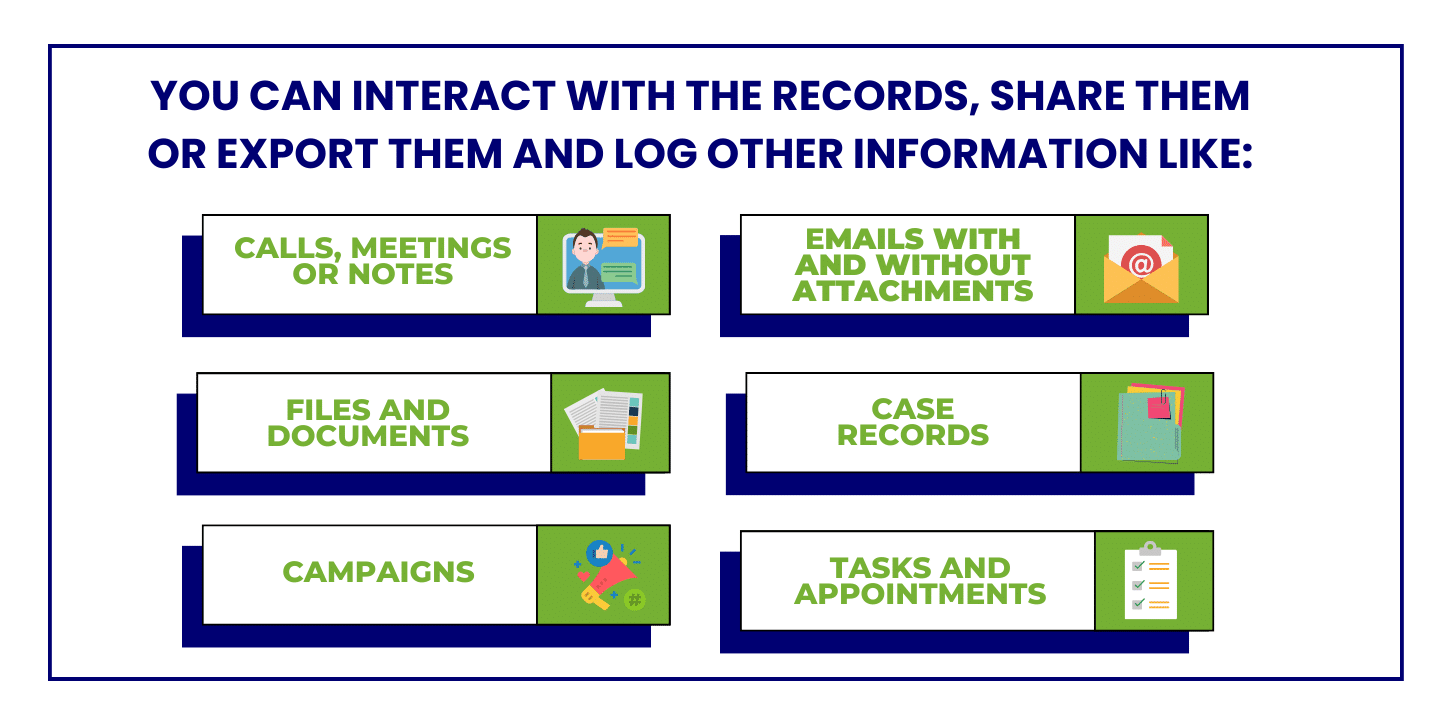
Going back to our example above, Maximizer records are structured on an address book that includes company, contact and individual records. Individuals are independent contacts – generally consumers. Attached to these address book records are the following:
- Calls, meetings and notes
- Emails with and without attachments
- Files and documents
- Opportunity records
- Case records
- Tasks and appointments
- Campaigns
If you plan to insert records frequently, it is likely that you will be acquiring data from lists and contact sign up forms on the web. The quality of these records is not always great, so it can be helpful to direct new entries into a separate Leads module in the CRM so they can be vetted. Once they are qualified, they can be converted into the address book for ongoing account management.
Making the most of your new Customer Relationship Management software
Not unlike your original spreadsheet, the CRM can be tailored to your specific requirements. You can add fields, build filters and generate dashboards. CRM solutions can add as many custom objects as clients require. We try to avoid cluttering the system by starting with what currently makes the business run well. We look at the most important things you were getting from your Excel system and the specific pitfalls so we can build out the necessary components in the CRM application.
The simplest custom objects in a CRM are fields. You can add user defined fields to Maximizer that can store data as dates, numbers, text or table values. You can assign attributes to these fields to make them mandatory, conditionally mandatory and private to specific users.
These fields can then be combined into saved filters or search catalogs to allow you to look up records based upon your key data. These fields drive quick searches, dashboards and reports, and can trigger automation elsewhere in your business process.
Once your fields are in place, you can configure how you present data for viewing and for editing. For Maximizer clients we try to reduce the layout to avoid creating confusion for new users and add elements as the system becomes more familiar. Our goal is to get the users comfortable with the system so they start contributing to it. Once they recognize the advantage of having a 360-degree view of the customer, with easy access to the last touch point and next action, we can help them build better work habits.
Very much unlike Excel, a CRM can be locked down granularly, so that some people can view, some can edit and others can administer the system. The security available in CRM solutions can prevent costly mistakes and errors. It protects the organization and the users from their own occasionally disruptive actions, and maintains an audit log so the administrators can look back to see how something was changed or deleted. If some action were to slip past the configured permission, the audit log can help maintain ongoing security improvement.

Troubleshooting common issues during conversion
The import facility in Maximizer allows you to control most formatting. For instance, you can take data that is all capitalized and load it in name case format. Should something get past you, there are tools to address it post upload. Here are two examples of record updates you might run across.
- You uploaded the phone label but you input the wrong one or you spelled it incorrectly.
If your inbound data has an incorrect value, but the value is incorrect consistently for a batch of records, the easiest approach is to global edit just those rows. So, I might do a look up for phone labels that are spelled ‘Dirct’ and in the global edit replace this with ‘Direct’. This is simple and the functionality is flexible. If you have a table, there are options to append, replace or remove items in a drop down.
- You uploaded the phone number, but it has +1 at the start of the number.
Here is a different problem. I want to remove the +1 from +1 212-555-1212 but I the phone number will vary from record to record. In this case, my solution starts the same as above. I must do a search to find ‘+1’ in the phone field. Once I have this list, I export the phone number and an ID number to a spreadsheet. In the spreadsheet, I replace the +1 and save the file without it. Now I reimport, matching on my ID and updating (replacing) the phone field.
Should you run into errors importing into Maximizer, the cycle ends with a failed log. This is a CSV file that only contains records that didn’t make it into the CRM. These files need some attention. Fields may be too wide, or contain the wrong type of data, or may even be blank when they require a value. Whatever the problem, you will have a message in the CSV detailing why the record was rejected. Simply rectify this issue and re-load using the CSV plus the field map created in the initial effort. It is better to fix the problems before they enter the CRM in the first place.
Training your team for a successful transition
User training can be a misnomer, because a CRM kick-off is more than simple instruction. There also has to be a support plan in place and direction from leadership that there is commitment to leverage a new way of working. Maintaining high levels of user adoption right away is critical to making the transition a success. We build in post-training Q&A sessions to let users provide feedback and handle problems right as they emerge. These follow-up sessions are as important as the initial training.
There is no problem with someone using Excel after a CRM is in place, but that use must not be the functions being replaced by the CRM. For instance, you could have users make a list of customers in the CRM and export to Excel for reporting or to share with a vendor. However, we would not want users to update the Excel data if they are expected to do that in the CRM.
We will not be able to capture email, notes and tasks if users are bouncing around between an old spreadsheet and a new CRM. Working in the solution develops the familiarity that will be necessary for the organization to succeed with CRM. Over time the benefits of the new CRM system will drive this behavior, but initially, it may take some direction from the top.
In the end, when you find you have taken your Excel system as far as it will go, making the jump quickly and cleanly to a CRM is a choice you won’t regret.

Jon Arancio, Vice President
Jon is the co-founder and Vice-President of Wintec Group Inc., a CRM software reseller and application support specialty firm. He helps clients implement Maximizer CRM, and provides outsourced application knowledge to firms who need the additional skills sets but are not looking to add support staff for this technology.
Schedule a Call with a CRM Consultant
Don't lose clients you worked hard to get! Let us help you keep and grow your business with Maximizer CRM.